You are required to enable WinRM on all your target nodes in order to perform Agentless scanning. The preferred method of enabling WinRM is via Windows Group Policy Editor, which provides an interface to centralize the management and configuration of WinRM for new and existing Active Directory computers. The following topic describes how to create and apply an 'Enable WinRM' Group Policy Object (GPO). To configure WinRM for systems that are not connected to a domain, see Enable HTTPS WinRM – Systems Not Connected to a Domain. For more information on how to troubleshoot common problems related to WinRM, see Troubleshoot WinRM – HTTP, HTTPS.
Procedure
To enable WinRM via a group policy, use the following process..
-
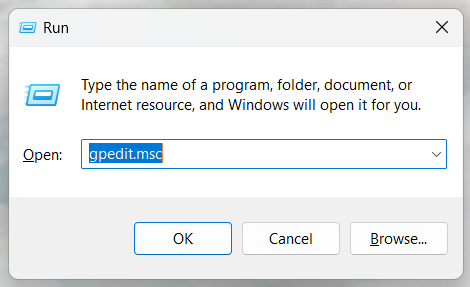
Click Win + R to display the Run dialog, then type 'gpedit.msc' in the text box and click OK. The Local Group Policy Editor is displayed.
-
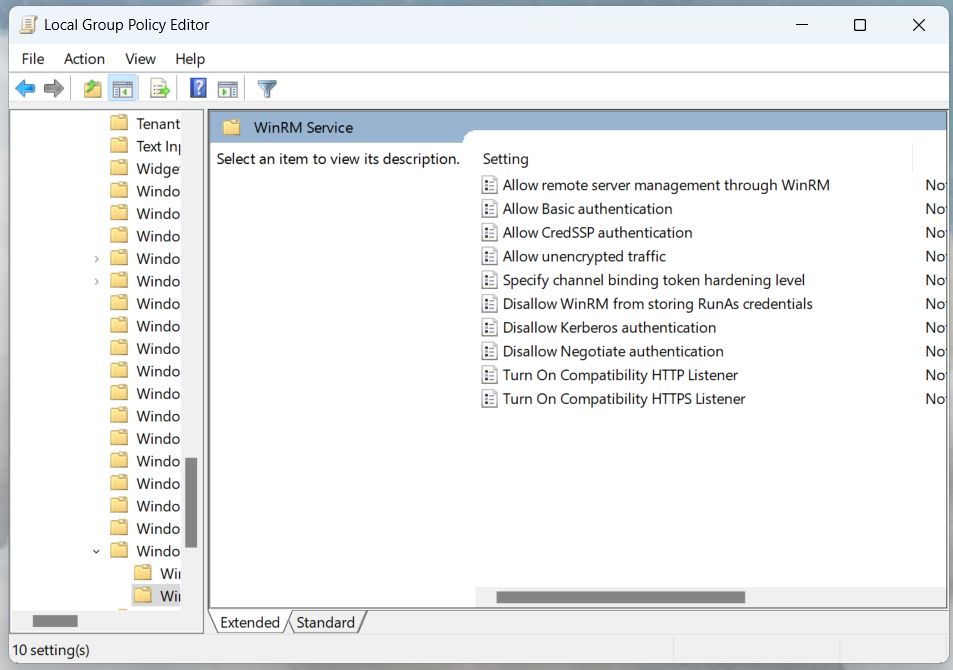
Navigate to the WinRM Service folder (Computer Configuration > Administrative Templates > Windows Components > Windows Remote Management (WinRM) > WinRM Service).
-
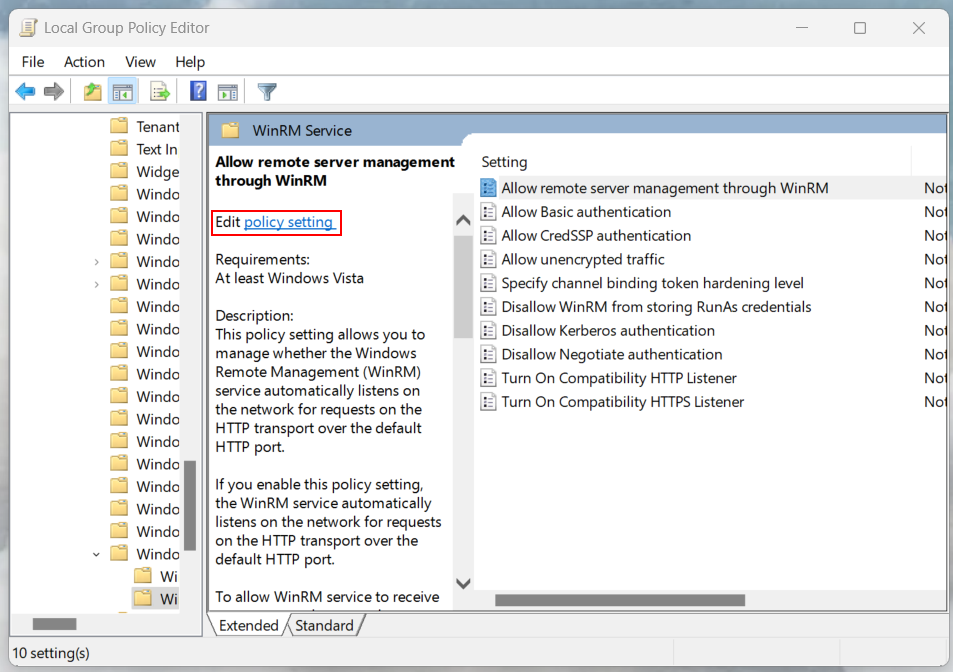
Select the 'Allow remote server management through WinRM' Setting. Then, click the Edit policy setting hyperlink. The Allow remote server management through WinRM dialog is displayed.
-
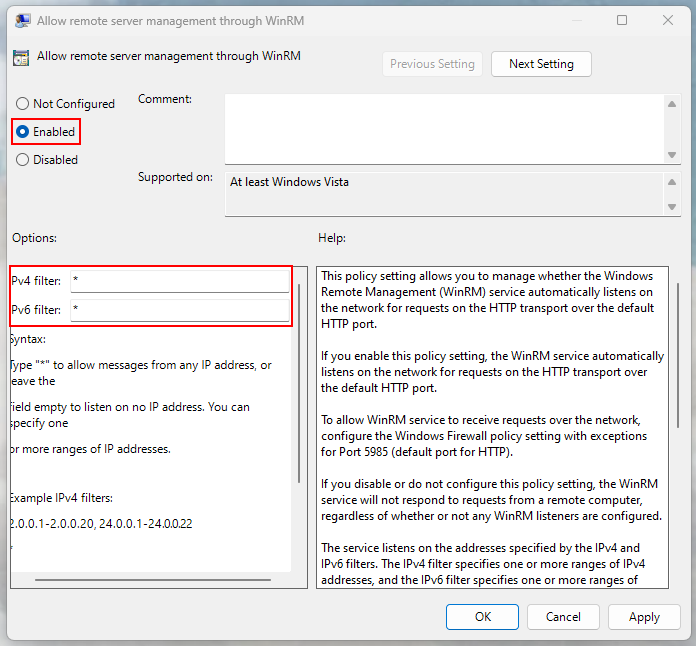
Select the Enabled radio button, and enter '*' in the Pv4 filter and Pv6 filter fields. Then, click Apply and OK to close the dialog and save your changes.
-
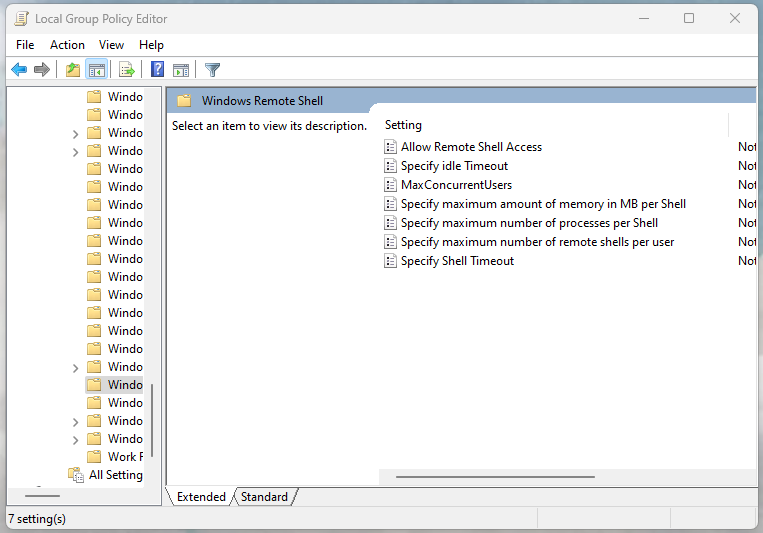
In the Local Group Policy Editor, navigate to the Windows Remote Shell folder (Computer Configuration > Administrative Templates > Windows Components > Windows Remote Shell).
-
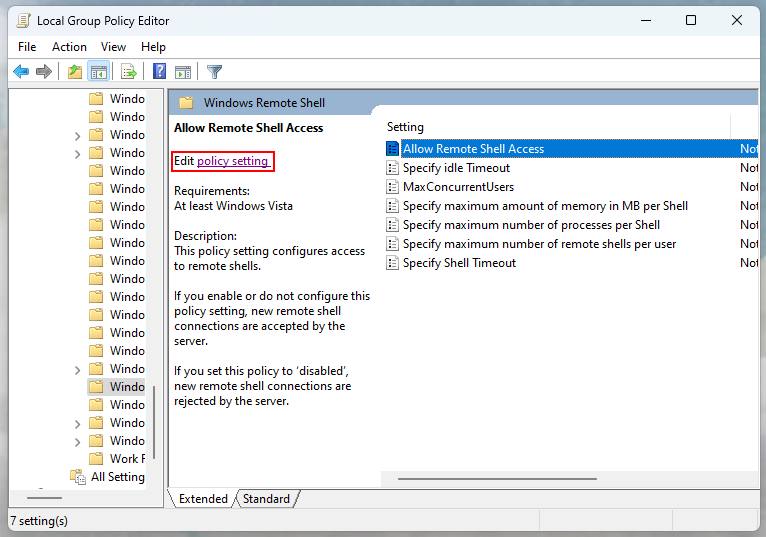
Select the 'Allow Remote Shell Access' Setting. Then, click the Edit policy setting hyperlink. The Allow Remote Shell Access dialog is displayed.
-
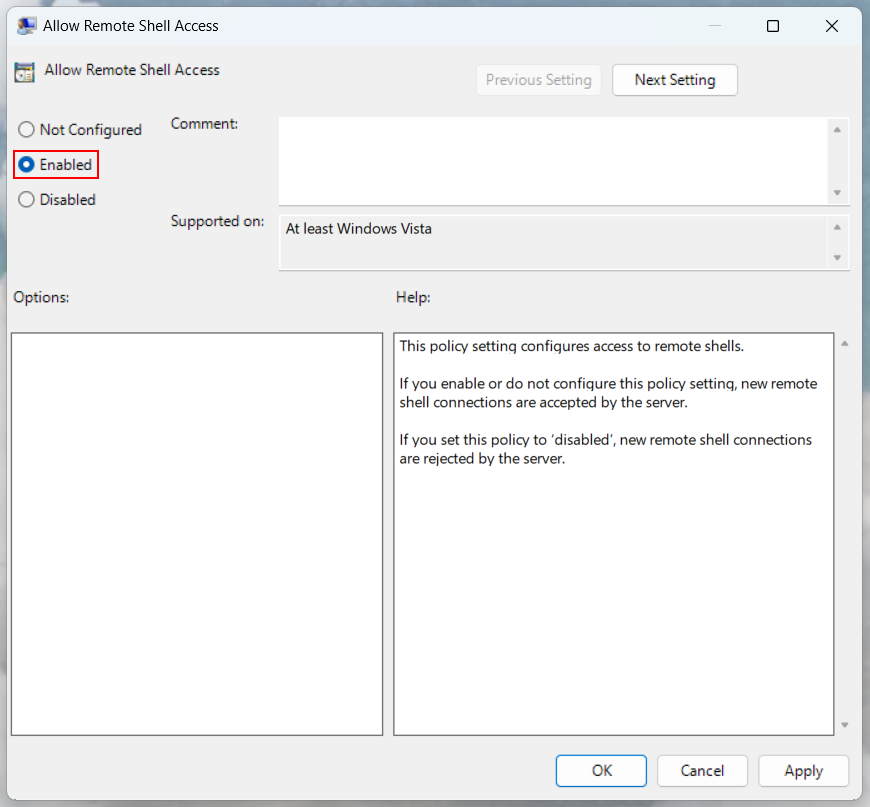
Select the Enabled radio button and click Apply, then OK to close the dialog and save your changes.
Validate the Setting
To validate that the GPO setting has been configured correctly, run the following command via a PowerShell prompt on the node.
PS> dir WSMan:\localhost\Shell\
...
System.String  AllowRemoteShellAccess        GPO            true
...